Product Screen Overview
SmartCanvas is used to design products which can be customized such as greeting cards, invitations, business cards, calendars, brochures, promotional flyers, or soft signage that you customize using its visual editor. Depending on the product you select, you can, for example, add or edit printable elements such as text and headlines, images, QR codes and shapes to personalize your product. Products may also provide the option to upload a file to create multiple personalized versions of a product. The options available vary depending on the product selected.
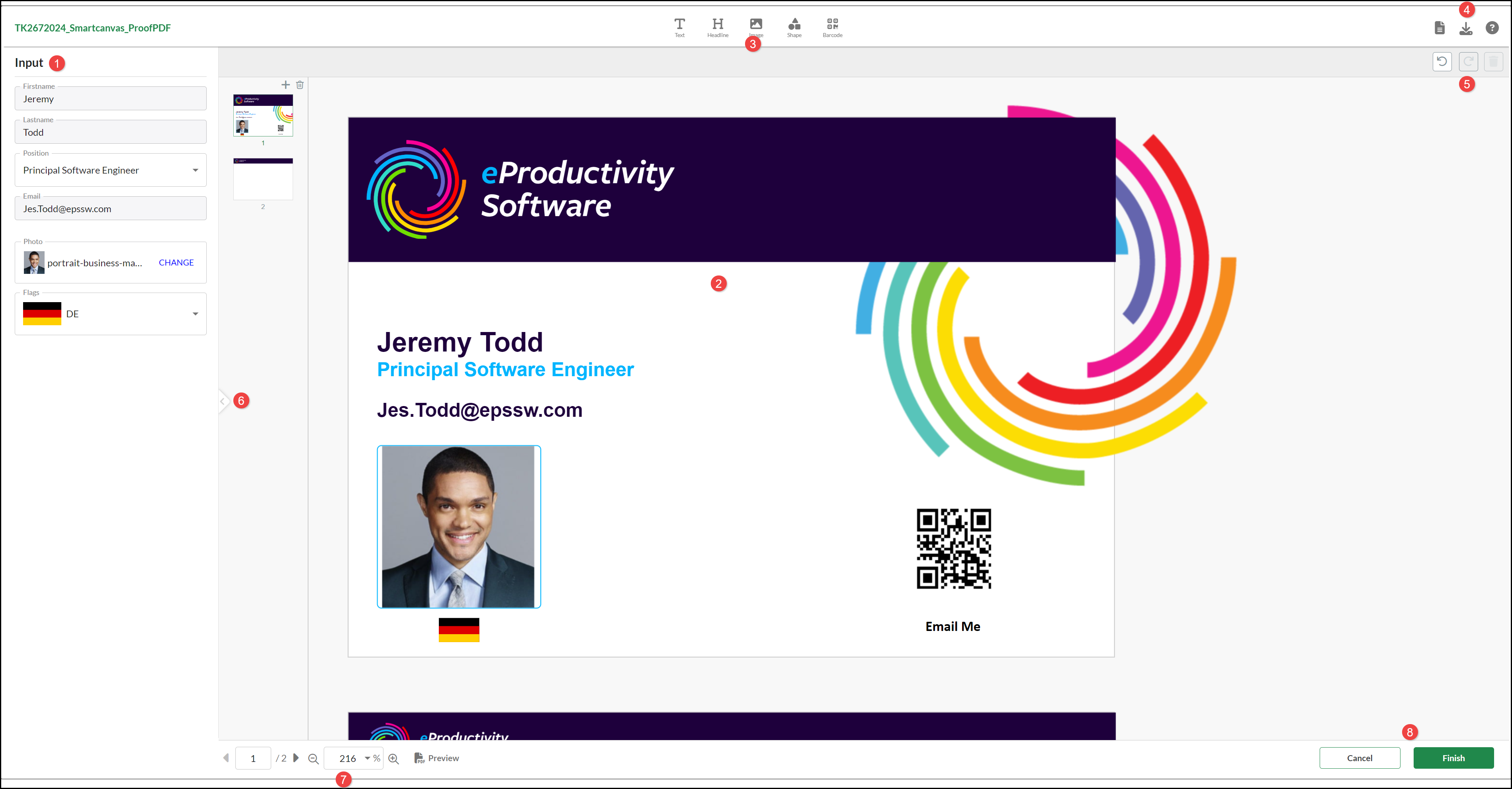
When you select to Buy Now from a company's SmartCanvas based Home page, it is displayed in the Product screen. The options available vary based on the product selected but the screen structure includes:
- A product Input panel showing default values which you can personalize by entering your own text, images or selecting values from a menu. The options available to you vary according the selected product.
- The main area of screen displays the product. The product may be split in to different pages (sheets). These sheets are displayed in an area referred to as a canvas. Any personalization changes are displayed on a product sheet as you make them.
- The product Editing Tools can be used to make modifications to the product design. You can add:
- Text
- Images
- Shapes
- Barcodes
- Additional options are available, you can:
- Use Document Settings to change, for example, the size and orientation of your product.
- Download your document in JPG, PNG or PDF format.
- Access this online Help.
- You can Undo, Redo and Delete All changes.
- Click the panel Input Tab to toggle between displaying it on screen and providing more canvas space to work on your design.
- You can view different Pages, Zoom in and out and Preview the product.
- Click Cancel to leave the order or Finish to return to the Job Settings and Preview screen.
See also: