Document Settings and Preview
You can apply Document Settings to the product and Preview before you confirm the purchase.
Document Settings
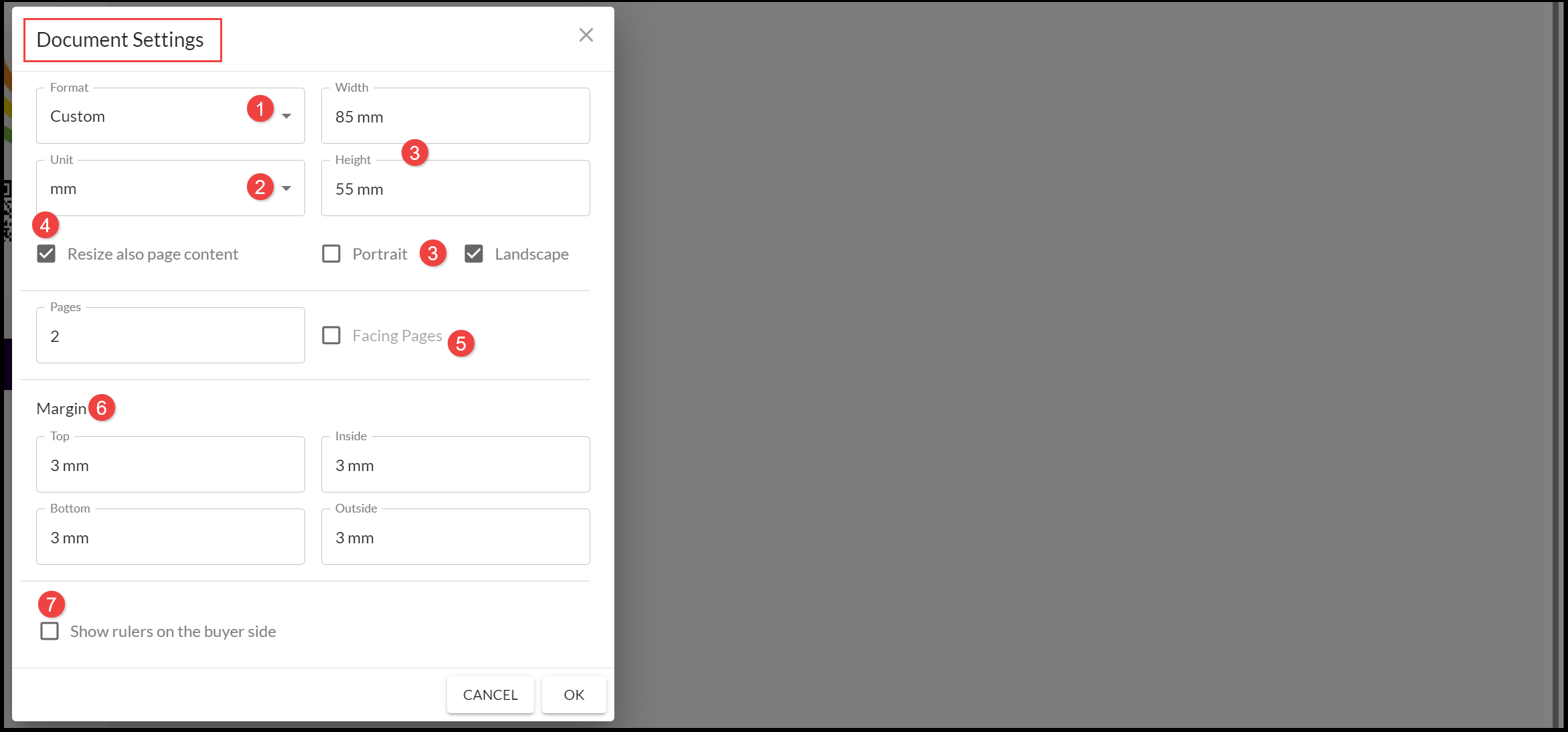
Select the Document Settings icon:
- Select the Format, this could be a media size, for example, A5 or US Letter, choose Custom to set your own dimensions.
- Select the Unit, for example, mm, inches or pixels.
- If using a Custom format, enter the Width and Height for the product in the selected Unit. SmartCanvas will automatically determine whether the orientation is Portrait or Landscape based on the measurements. Select this for other Formats (or if the Custom format has equal Width and Height).
- Select to Resize also page content in proportion to the media dimensions (you can Zoom later to view comfortably) or leave the product design the same size and just resize the canvas.
- Select if you want Facing Pages for multi-page media.
- Set the Margin dimensions around the media edge.
- You have the option to Show rulers at the edge of the canvas area.
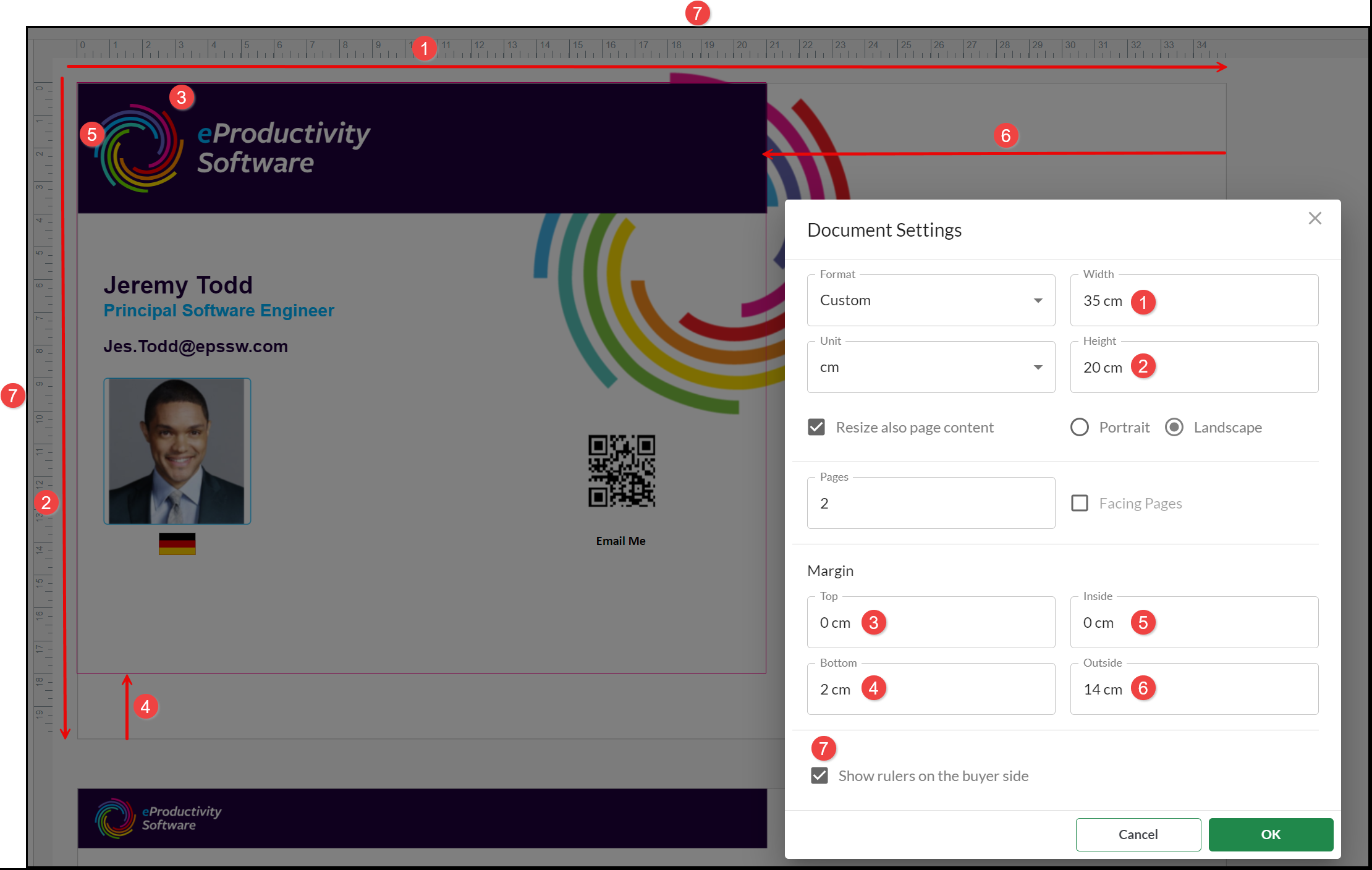
The Document Settings you choose are displayed by a Colored Box which forms the dimension of the final print area:
- Total Width of the canvas.
- Total Height of the canvas.
- Top Margin.
- Bottom Margin.
- Inside Margin (from the left).
- Outside Margin (from the right).
- Rulers (displaying total Width and Height).
Preview
Select to Preview your product. The first page is displayed to give you an idea of the dimension of the final product. If you have the option to Download PDF, all pages are included in the Download. You may also be able to select to Download the product in PDF, PNG and JPG format.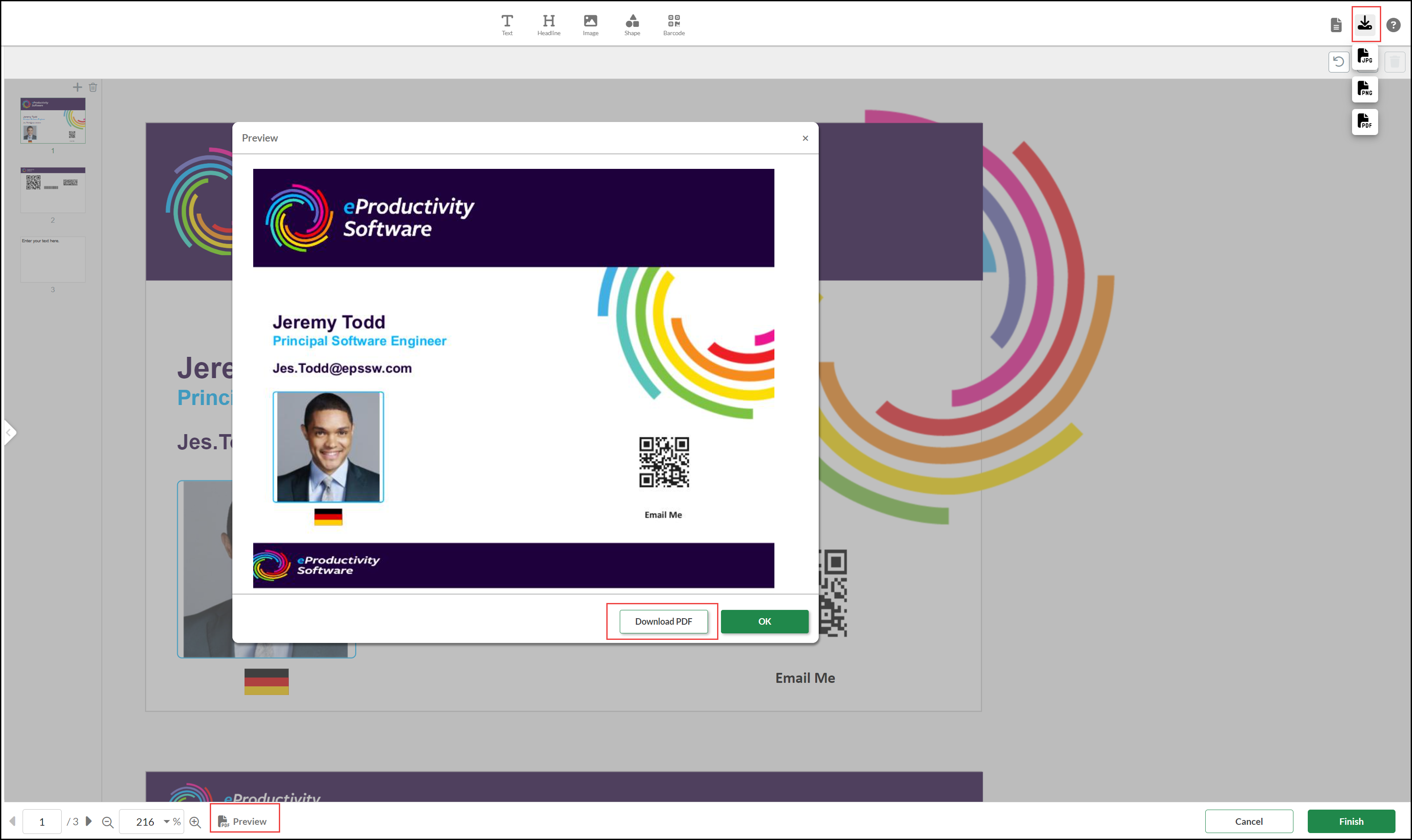
See also: